Assign functions: decide what your agent can do
Six functions, one checkbox each: decide per agent what it should handle – from requests and call transfers to address book transfers.
In the app: AI Telephony → Agents → [Agent] → Functions
A Callana agent can do more than talk – it captures requests, transfers calls and logs complaints. Which of these an agent should handle is up to you, with one checkbox per agent. That keeps every agent focused: the support agent doesn't need to know anything about sales, and vice versa.
The six functions at a glance
| Function | What it does |
|---|---|
| Capture requests (“Anfragen aufnehmen”) | Takes down callers' concerns and saves all relevant details in a structured way |
| Transfer (“Weiterleitung”) | Transfers the call live to a phone number or department |
| Log complaints (“Beschwerde aufnehmen”) | Records complaints in a structured, categorized way |
| General information (“Allgemeine Auskunft”) | Answers questions based on your knowledge base |
| Abandoned calls (“Abgebrochene Anrufe”) | Detects and saves calls under 18 seconds in which no function was triggered |
| Address book transfer (“Adressbuch-Weiterleitung”) | Puts known callers straight through based on address book rules – no AI conversation at all |
How to set it up
- Open your agent and go to the Functions (“Funktionen”) tab.
- Check the functions this agent should handle – the counter below shows the status (e.g. “5 of 6 functions active”).
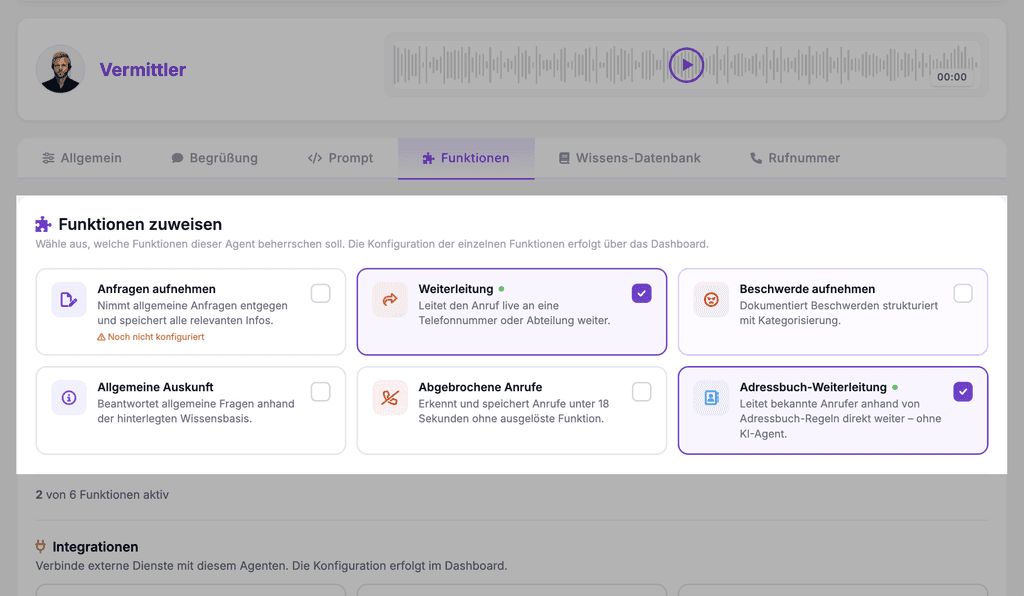
- Important: this is only where you assign functions. The actual configuration – which requests exist, where calls are transferred – happens on the Overview (“Übersicht”) in the “Functions” card (see the linked articles on requests and transfers).
- Further down in the same tab, you'll find the Integrations (“Integrationen”) – Resmio, Aleno, bexio, Outlook – which you also enable for the agent with a checkbox.
Real-world example
A dental practice deliberately launches its new agent with a lean setup: just “General information” and “Capture requests”. Two weeks later, once trust is established, “Transfer” to the front desk and “Abandoned calls” are added. You can add functions at any time – nobody has to turn everything on from day one.
Where: AI Telephony (“KI-Telefonie”) → Agents (“Agenten”) → choose an agent → Functions tab
Good to know
- Assigning and configuring happen in two places: the checkbox here in the agent, the details on the Overview under “Functions”. A checked box without configuration doesn't do much yet.
- Start lean: Fewer functions mean clearer conversations. Expand once the basics run smoothly.
- The Address book transfer requires the address book to be enabled for the agent (General tab → Enable address book, “Adressbuch aktivieren”).
- Abandoned calls are underrated callback opportunities: someone who hangs up after 10 seconds may have wanted a human – this function collects exactly those numbers for you.
Last updated July 17, 2026
Related
- Define custom requests: turn calls into structured emailsChoose which requests your agent captures, what details it asks for, and who gets them by email or SMS – including a confirmation text to the caller.
- Transfer calls to the right person with schedules and alertsSet up multiple transfer destinations with plain-language rules, time windows and notifications – your agent automatically puts callers through to the right person.
- Fill your knowledge base: documents your agent answers fromUpload PDFs, Word and text files – your agent reads them automatically and answers questions about them. Multiple documents allowed, up to 10 MB per file.