Your AI Telephony Dashboard at a Glance
Key metrics, call types, open entries and usage: how to read the AI Telephony Overview and know what happened in two minutes.
In the app: AI Telephony → Overview
The Overview (“Übersicht”) is your control center: it shows how much calling went on, why people call, and what is still on your desk. Once you know what each section does, two minutes in the morning is all it takes to get up to speed.
The sections at a glance
Metric tiles (top): Talk time this month, unique callers (distinct phone numbers, not calls – someone who calls three times counts once), complaints this month, and the average API latency, which tells you how quickly the technology responds. To the right, the purple tile shows calls this month with a trend line.
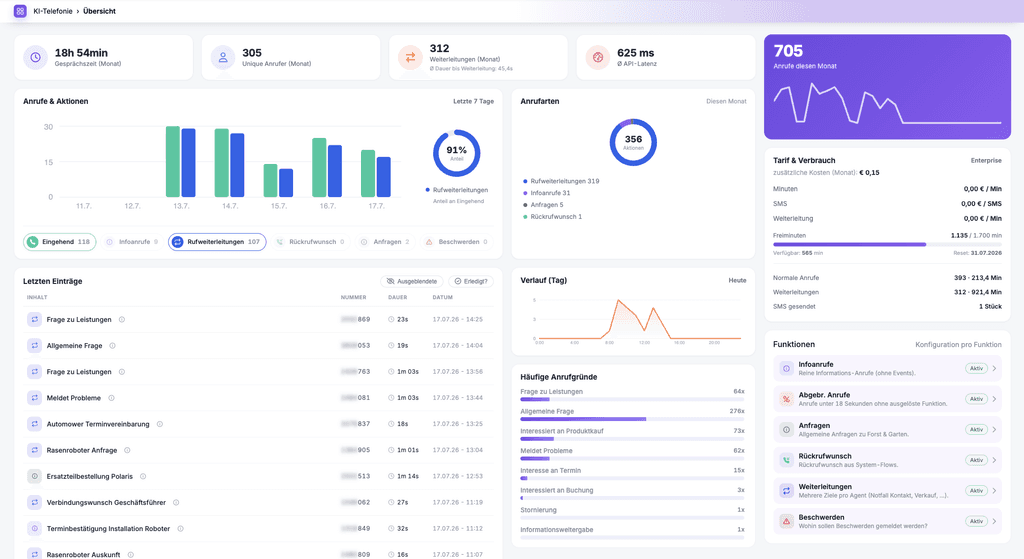
Calls & Actions (“Anrufe & Aktionen”): A bar chart of the last 7 days. The chips below it – Inbound, Requests, Info calls, Call transfers, Complaints – show the count for each call type. The selected type is highlighted in the chart along with its share (for example, “73% of inbound calls were info calls”).
Call Types (“Anrufarten”): The donut chart sums up this month's actions – how your call volume splits between info calls, requests and transfers.
Recent Entries (“Letzte Einträge”): Your task inbox. Everything the agent has captured ends up here – requests, complaints, transfer events – each with the phone number, call duration and time. Use the Done? (“Erledigt?”) and Hidden (“Ausgeblendete”) buttons to control which entries you see.
Timeline (Day) (“Verlauf (Tag)”): Today's call volume by hour – handy for spotting peak times.
Frequent Call Reasons (“Häufige Anrufgründe”): The agent categorizes calls automatically (“General question,” “Reports a problem,” “Interested in buying a product” …) and keeps count. It's the fastest reality check on what your callers actually want.
Right column: Plan & Usage (“Tarif & Verbrauch”: free minutes and costs – covered in its own article) and the Functions (“Funktionen”) status, with a direct link to each function's settings.
A real-world example
An operations manager starts every Monday with three quick checks: Is the complaints tile at 0? What was the most frequent call reason this week – and does the knowledge base cover it? Which recent entries are still open? She hands those straight to her team. Two minutes, and the week starts without surprises.
Where: AI Telephony (“KI-Telefonie”) → Overview
Good to know
- The metrics at the top cover the current month. For other time periods and individual calls, use the call list and its content search.
- Frequent Call Reasons tell you what to work on next: a reason that keeps coming up belongs in the knowledge base or should be set up as its own request.
- The Functions panel on the right is the fastest way into the settings for requests, call forwarding and more – quicker than going through the agent.
Last updated July 17, 2026
Related
- Search & filter the call log – even by conversation contentForgot the number but remember the topic? The call log also searches conversation content. Plus: filters, date ranges and what the call tags mean.
- Free Minutes, Usage & Costs ExplainedFree minute allowance, per-minute rates, call transfers and SMS: how to read the Plan & Usage panel and keep your costs under control.
- Assign functions: decide what your agent can doSix functions, one checkbox each: decide per agent what it should handle – from requests and call transfers to address book transfers.