How the Platform Is Organized: Modules & Navigation
Dashboard, AI Telephony, Chat, Widget, trip planner: how the Callana platform is organized – and where to find everything.
In the app: app.callana.at → Main navigation
Callana is made up of several modules under one roof. Once you've seen the logic, you'll find your way around everywhere: at the top you choose the module, on the left the section within it. Three minutes of orientation, and you're set.
How the interface is laid out
Top – the modules: The main navigation lets you switch between the modules in your account – by default Dashboard, AI Telephony (“KI-Telefonie”), Chat and Widget. To the left is your company name (your account); on the far right, your profile.

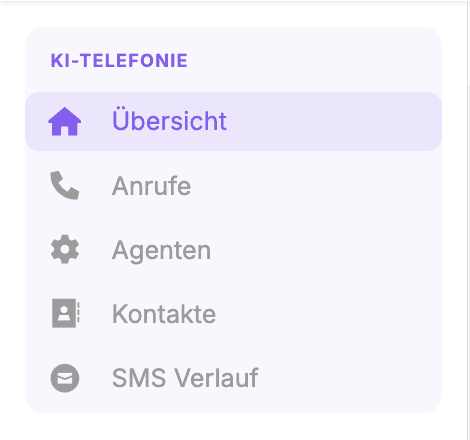
Left – the module's sections: The sidebar adapts to the module you've selected. In AI Telephony, the sections are:
| Section | What's inside |
|---|---|
| Overview (“Übersicht”) | Everything at a glance – below the live chart, the latest events are listed, with canceled and completed entries hidden automatically |
| Calls (“Anrufe”) | Every call, with search, filters and tags – your call log |
| Agents (“Agenten”) | Your AI phone agents with all their settings (voice, greeting, prompt, functions …) |
| Contacts (“Kontakte”) | The address book with groups and forwarding rules |
| SMS History (“SMS Verlauf”) | The text messages sent by your agents |
Below that is the Workflows section with its own settings.
The other modules in brief: Chat and Widget go together – this is where the conversations from the chat on your website live, along with its integration (domains, settings). Many customers also have custom modules: Callana builds tailor-made dashboards and channels for your business – reservation or planning modules, for example – that live in the same dashboard and share context with your agents. So which modules you see at the top depends on your setup.
Finding your way: On each page, a breadcrumb at the top shows where you are (e.g., “KI-Telefonie › Übersicht”). In the bottom right corner you'll find the platform's version number – handy when you're discussing a detail with the Callana team.
A real-world example
One business shows new team members exactly two starting points: the Overview (“What happened?”) and Calls (“What was said?”). All configuration happens under Agents and Contacts. Day-to-day work rarely needs more navigation than that – the rest becomes clear when you need it.
Where: app.callana.at → Main navigation (top)
Good to know
- The sidebar changes with the module – if you “can't find” something anymore, you're usually just in the wrong module.
- Your menu reflects your setup: Custom-built modules are only visible to the customers they were developed for. If your navigation shows more (or less) than the screenshots here, that's not an error.
- This Help Center currently covers the AI Telephony module; articles on Chat/Widget are coming.
- The company name in the top left shows which account you're working in.
- For support requests, the version number in the bottom right helps avoid misunderstandings.
Last updated July 17, 2026
Related
- Your AI Telephony Dashboard at a GlanceKey metrics, call types, open entries and usage: how to read the AI Telephony Overview and know what happened in two minutes.
- Assign functions: decide what your agent can doSix functions, one checkbox each: decide per agent what it should handle – from requests and call transfers to address book transfers.
- Search & filter the call log – even by conversation contentForgot the number but remember the topic? The call log also searches conversation content. Plus: filters, date ranges and what the call tags mean.